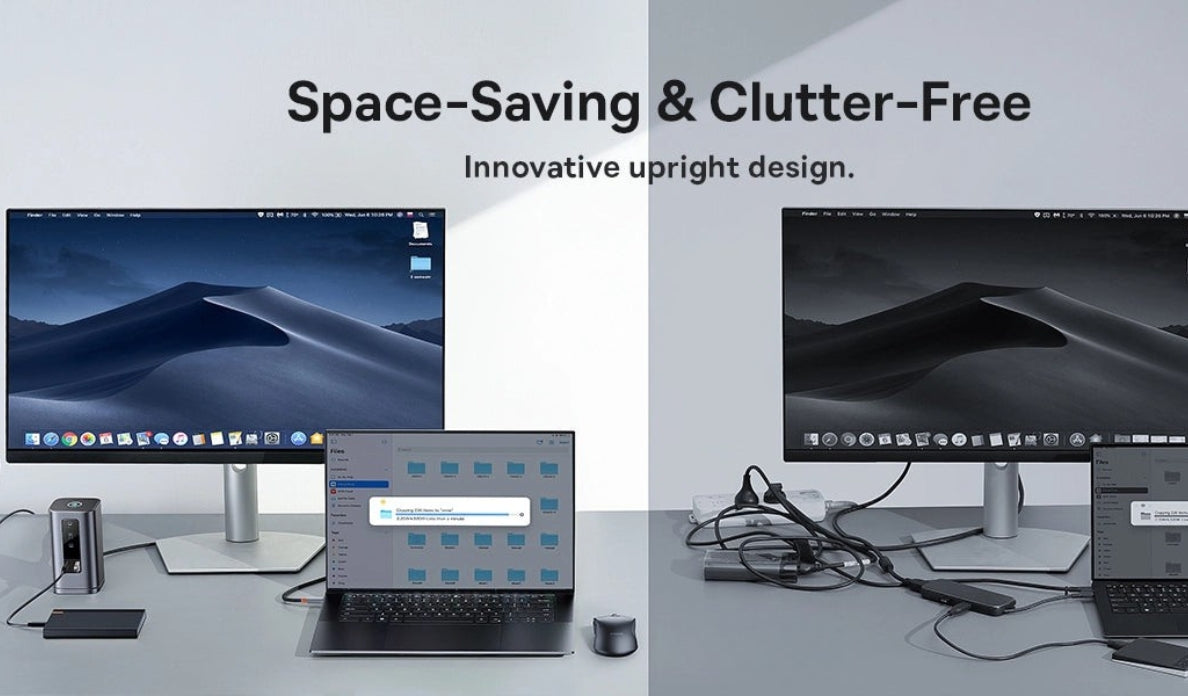



You sit down at your desk. You have a brand new laptop. You also bought three beautiful external displays. You want to build the ultimate productivity command center.
You plug everything into a cheap adapter. You turn the power on. You wait for the magic to happen.
But the magic fails.
Instead of a massive extended desktop you see the exact same image cloned three times. Every screen shows your mouse moving in perfect synchronization. It feels like a massive waste of money. It feels incredibly frustrating.
This is the monitor bottleneck. Standard hubs simply lack the required intelligence to handle massive pixel data properly. To build a true triple monitor docking station Windows setup you need specific technology. You need to understand how your computer talks to your screens.
Let us dive deeply into the hardware. We will uncover exactly how you can connect three monitors and get the workspace you actually deserve.
The Monitor Bottleneck Explained
Most people assume a USB C port is just a pipe. You push video data into the pipe and it comes out the other side. This is fundamentally incorrect.
Data is complicated. Video data is especially heavy. Pushing millions of pixels takes massive bandwidth. When you connect multiple monitors laptop hardware struggles to divide that data without a smart controller.
Basic hubs use older technology. They act like a simple splitter cable. Imagine a water hose branching into three different nozzles. The exact same water comes out of every nozzle. This is why you end up with mirrored screens.
If you want to extend displays Windows needs a traffic cop. It needs a device capable of routing different information to different destinations simultaneously.
Tech Deep Dive: SST vs MST
To fix the mirroring problem we must look at the protocols sending your video signal.
Let us talk about Single Stream Transport first. This protocol sends one singular video package out of your computer port. Apple devices rely heavily on this standard. If you plug three screens into a basic hub using Single Stream Transport they all receive that exact same video package. You get three identical cloned screens.
Now let us look at the true hero of our story. We need to get DisplayPort MST explained.
MST stands for Multi Stream Transport. The Video Electronics Standards Association developed this brilliant standard to solve our exact problem. You can read more about their display standards directly at the official VESA website.
This technology is a game changer. It takes the massive video bandwidth coming from your laptop and actively splits it. It divides that single pipeline into multiple independent video streams.
The hub acts as a router. It looks at the incoming data and says "Stream A goes to monitor one. Stream B goes to monitor two. Stream C goes to monitor three."
Each connected screen receives its own unique data package. You finally get to drag your windows across three completely different monitors. This is the core secret behind any professional USB C docking station. It gives you the massive digital real estate you need to work efficiently.
Pushing Pixels with the Spacemate
Understanding the theory is great. Applying it in the real world is much better.
Let us look at a device built specifically for this task. The Baseus Spacemate 11 in 1 docking station is engineered directly for Windows power users.
This piece of gear does not mess around. It features two HDMI ports and two DisplayPort connections. You get incredible flexibility to connect whatever displays you currently own.
Thanks to its advanced internal chip it handles massive data loads effortlessly. It reads the Multi Stream Transport signal perfectly. This allows you to drive a flawless 4K 60Hz multi monitor setup without breaking a sweat.
Imagine your workflow with this kind of power.
Your video editing timeline stretches across the center screen. Your script and research materials sit open on the left screen. Your team chat and email remain constantly visible on the right screen.
All of them run at a crisp 4K resolution. All of them refresh at a buttery smooth 60 frames per second.
There is no lag. There is no mouse stuttering. You just experience pure unadulterated productivity. It turns a standard thin laptop into a professional workstation instantly.
The Power Requirement: 100W PD
Pushing millions of pixels across three separate 4K screens is incredibly hard work.
Your laptop graphics card has to work overtime to render all those unique images. That heavy lifting drains your battery extremely fast. You simply cannot run a massive display array on battery power alone. The system will throttle your performance to save juice.
This is why pushing serious pixels requires serious power.
The Spacemate includes a robust power delivery system to solve this exact issue. It features a 100W Power Delivery input port. You plug your heavy duty wall charger into this port.
The dock takes a small sliver of that power to run its internal chips. It then provides up to 85W of pass through charging directly to your laptop.
This continuous flow of energy ensures your machine stays fully charged even under the heaviest graphical workloads. You never have to worry about your computer dying in the middle of a major project or an intense gaming session.
Setting Up Your Displays in Windows
Having the right hardware is only the first step. You still need to tell your operating system what to do with all those new screens.
Fortunately Microsoft makes this process very simple.
-
Right click anywhere on your empty desktop.
-
Select Display Settings from the menu.
-
You will see a visual representation of your connected monitors.
-
Click the Identify button so numbers appear on your physical screens.
-
Drag and drop the numbered boxes on your screen to match your physical desk layout.
-
Scroll down to the Multiple Displays section.
-
Ensure the dropdown menu is set to Extend these displays.
Click apply. Your mouse will now flow seamlessly from one screen to the next. You just unlocked a completely new level of multitasking.
Conclusion
Building the perfect workspace requires the right tools. A basic adapter will only give you cloned screens and immense frustration.
You need hardware that speaks the right language. You need devices that understand complex video protocols.
An MST capable triple monitor docking station Windows setup is the ultimate investment for anyone who needs more screen real estate. It unlocks the true hidden potential of your machine. It gives you the space to organize your digital life properly.
Stop settling for mirrored displays. Stop working in tiny cramped windows. Take control of your workflow and expand your vision today.
Explore our complete range of premium connectivity solutions.
Frequently Asked Questions
Why do my external monitors show the exact same thing?
You are likely dealing with a Single Stream Transport limitation. Basic hubs can only mirror your screen because they split one video signal blindly. You need a device supporting Multi Stream Transport to divide the video bandwidth properly. This allows you to extend your desktop across multiple unique displays.
Can I get a 4K 60Hz multi monitor setup on a Mac using one port?
No. MacOS does not support MST through a single port for extended displays. You will get mirrored screens if you try to use a standard hub for multiple monitors on an Apple computer. Apple users need specialized Thunderbolt docks or multiple direct connections to extend their desktop across different screens.
Do I need special cables for my new monitor setup?
Yes. You must use high quality HDMI or DisplayPort cables rated specifically for 4K at 60Hz. Older cables lack the physical bandwidth to carry that much pixel data. Using outdated cables will cause your screens to flicker or force them to drop down to a much lower resolution. Always use modern certified cables for the best experience.